
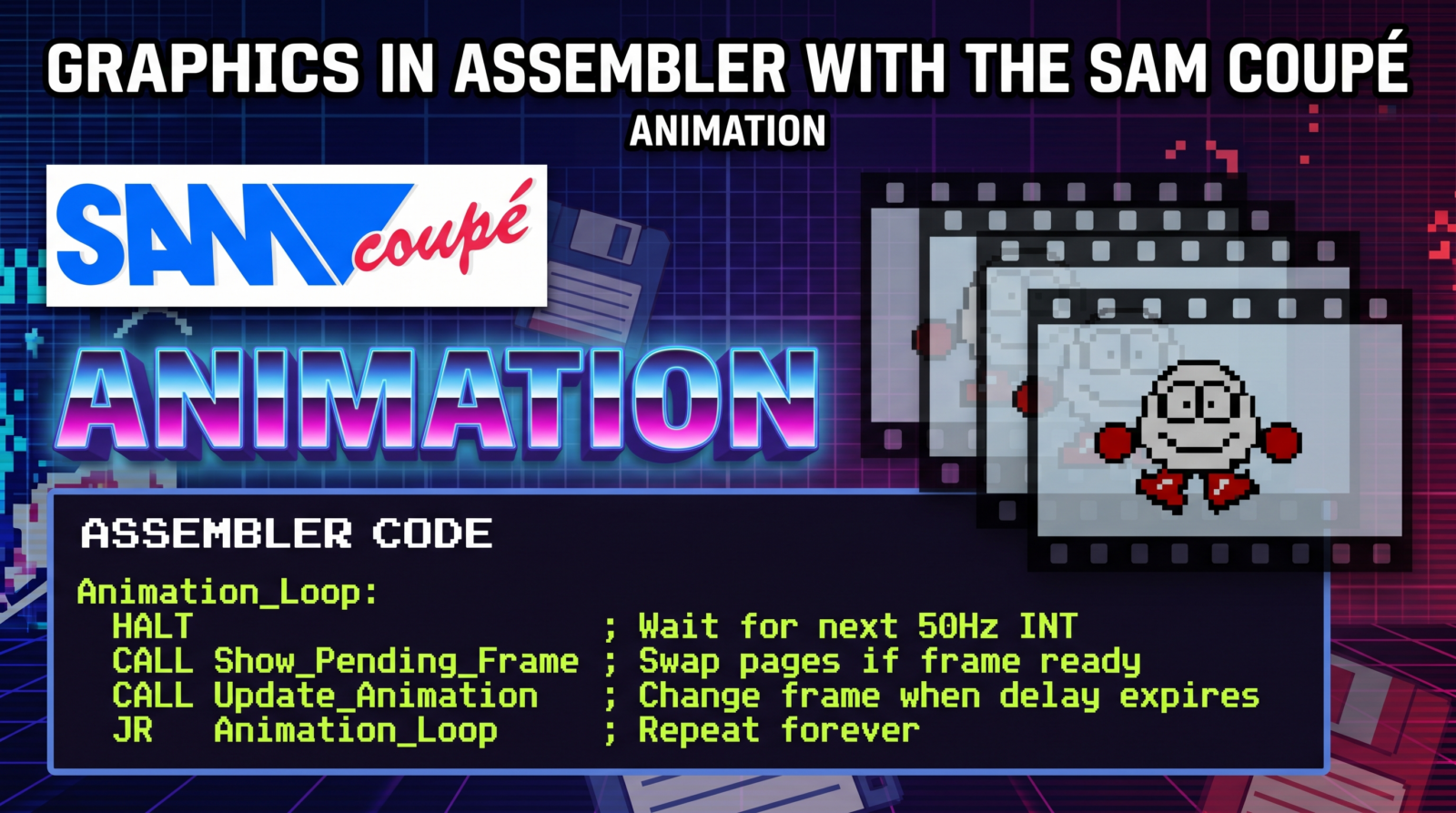
Welcome to the latest in my series of posts on Graphics with the SAM Coupé.
You can find the other posts in this series here;
- Sam Coupe Assembly Language Programming
- Graphics in Assembly for the SAM Coupé
- Making SAM Coupé Sprites Transparent
The GitHub Repo
You can find all the files for the series in my GitHub Repo here;
https://github.com/pjgpetecodes/samcoupegraphics
Thankyou’s
Thank you to Adrian Brown for supplying the sprites for this blog post and for the regular support in answering my questions!
Animating SAM Coupé Sprites
In the previous tutorial we made Dizzy transparent. We stored a mask byte and a pixel byte for every sprite byte, and drew them over whatever was already on the screen;
result = (screen AND mask) OR pixel_dataNow we want him to change frames over time. Animation is really two problems;
- How do we choose and time the animation frames?
- How do we update the screen without leaving old pixels behind, or showing the drawing process?
We will build it up in four steps, each one a separate assembly file in the assembly/blog4 folder;
| Step | File | What it adds |
|---|---|---|
| 1 | 6-1.asm | Takes 5.asm and alternates two frames stored in the program |
| 2 | 6-2.asm | Moves the frames into an external file; still two frames |
| 3 | 6-3.asm | Plays all nine frames from an animation table |
| 4 | 6-4.asm | Draws on a hidden screen page, then flips pages to remove the flicker |
All the sprite data was produced with my SAM Coupé Sprite Editor:
https://www.petecodes.co.uk/sam-coupe-sprite-editor
Step 1: Alternating Two Frames
Our starting point is the final assembly from the previous post (5.asm). It pages the screen into memory, draws one interleaved sprite with Draw_Sprite, and returns to BASIC. To animate, we need three new things;
- A second frame
- Something to say which frame is current
- A way to wait between frames
Everything else, including the Draw_Sprite routine, stays exactly as it was.
Two Frames
We keep the same interleaved format, but now we store two sprites. The second is Dizzy’s other idle frame;
Sprite1_Interleaved:
Sprite1_1:    DEFB    0xFF, 0x00, 0xFF, 0x00, 0xFF, 0x00, ...
...
Sprite2_Interleaved:
Sprite2_1: DEFB 0xFF, 0x00, 0xFF, 0x00, 0xFF, 0x00, ...The SAM has a palette, which lets a program choose which actual colours the 16 colour numbers in MODE 4 stand for. We will cover palettes in a later post. For now we haven’t set one up, so both frames use the standard system colours. Notice that Frame 1 is slightly different to the Dizzy from the previous post. The Sprite Editor can output a version of each frame mapped to the system palette, and I have used that here so that the two frames match.
Remembering the Current Frame
We add a pointer to the frame that is currently on screen;
Current_Frame_Data: DEFW Sprite1_Interleaved ; Frame currently on screenDraw_Sprite expects DE to point at the sprite data, so rather than hard coding Sprite1_Interleaved as we did in 5.asm, we load it from this pointer;
                LD      HL,0             ; Top-left screen byte, as in Tutorial 5
                LD      DE,(Current_Frame_Data) ; Point to the current interleaved frame
CALL Draw_Sprite ; Draw Dizzy using the mask/pixel dataWaiting with HALT
The SAM generates a frame interrupt 50 times a second, and the Z80 HALT instruction waits for the next one. That gives us a handy clock. We wait a few interrupts between frames;
Frame_Delay: EQU 5 ; Hold each frame for five 50 Hz interrupts LD B,Frame_Delay ; Hold this frame for a few 50 Hz interrupts
Wait_Frame: HALT ; Wait for the next interrupt
...
DJNZ Wait_Frame ; Keep waiting until the delay expiresFive interrupts is a tenth of a second, so Dizzy changes frame ten times a second. Change that one number to speed him up or slow him down.
A Wrinkle with the ROM
The final assembly from the previous post (5.asm) paged the screen into the bottom of memory, drew, and then paged the ROM straight back before returning to BASIC. We now need to do that on every frame, because HALT is waiting for an interrupt, and the interrupt handler lives in the ROM. If the screen RAM were still paged in, the Z80 would jump into the middle of a picture!
So each time round the loop we page the screen in, draw, page the ROM back, and only then enable interrupts and wait;
Animation_Loop: LD A,(Screen_Page)
OUT (LMPR),A ; Page the screen RAM into the lower memory area
;
CALL Clear_Sprite ; Remove the previous frame
                LD      HL,0             ; Top-left screen byte, as in Tutorial 5
                LD      DE,(Current_Frame_Data) ; Point to the current interleaved frame
                CALL    Draw_Sprite     ; Draw Dizzy using the mask/pixel data
;
LD A,0x1F ; Page ROM 0 back into the lower memory area
OUT (LMPR),A ; Restore the BASIC ROM mapping
EI ; The ROM interrupt handler is paged in, so allow interruptsClearing the Old Frame
You may have spotted the Clear_Sprite call. A masked draw only changes the pixels the sprite owns. It never clears anything. So if Frame 1 has a pixel that Frame 2 doesn’t, it would still be there after Frame 2 was drawn on top.
Since our screen is blank, the simple fix is to fill Dizzy’s 16 byte by 32 line rectangle with zeros before each draw;
Clear_Sprite:   LD      HL,0            ; Top-left screen byte
                LD      C,32            ; Clear all 32 sprite rows
;
Clear_Row:      LD      B,16            ; 16 screen bytes per row
;
Clear_Byte:     LD      (HL),0          ; Colour zero is the blank background
                INC     HL              ; Advance to the next screen byte
                DJNZ    Clear_Byte      ; Continue across the 16-byte row
                LD      DE,112          ; Skip the rest of the 128-byte screen row
                ADD     HL,DE           ; Point to the next screen row
                DEC     C               ; Count down the rows
                JR      NZ,Clear_Row    ; Continue until all 32 rows are cleared
RET ; Return after clearing the rectangleThis is the same structure as Draw_Sprite, a 32 row outer loop and a 16 byte inner loop, skipping 112 bytes at the end of each row to reach the same position on the next 128 byte screen line. Later on we will replace this with something smarter.
Swapping Frames
After the delay, we compare the current frame pointer with Frame 1 and swap to the other one;
                LD      HL,(Current_Frame_Data) ; Address of the frame that was just drawn
                LD      DE,Sprite1_Interleaved ; Address of frame 1, to compare against
                OR      A               ; Clear the carry flag so SBC is a plain subtraction
                SBC     HL,DE           ; Is frame 1 on screen?
                LD      HL,Sprite2_Interleaved
                JR      Z,Store_Frame   ; Yes, so show frame 2 next
                LD      HL,Sprite1_Interleaved ; No, so go back to frame 1
Store_Frame:    LD      (Current_Frame_Data),HL
JR Animation_Loop ; Draw the next frameThe loop never ends, so reset the SAM to stop the demo.
The Full Assembly
Full Assembly Listing for 6-1.asm
Download the Disk Image
You can download the disk image for 6-1.asm to run in SimCoupe or on your real SAM here;
The Result
You should now see an animating Dizzy! You’ll notice how flickery it is… Don’t worry, we’ll fix that later on.

See the result in the SAM Coupe Web Emulator
The following is showing a Web Embedded version of SimCoupe by Anomixer. You can find the repo for this here; https://github.com/anomixer/SamCoupeWeb.
Step 2: An External File
Two frames stored in the program is fine, but Dizzy has nine frames, and the listing would become enormous. dizzy_system_interleaved.asm is generated by the Sprite Editor and holds all nine, so we move the data out into that file and include it at the end of the program, in place of the two Sprite blocks;
INCLUDE "dizzy_system_interleaved.asm"Each frame in the file has a label, Dizzy_System_Interleaved_Image1 through Dizzy_System_Interleaved_Image9, so our code can refer to them by name without caring where they end up in memory. The only other change is that the two labels we used in Step 1 are replaced with these;
Current_Frame_Data: DEFW Dizzy_System_Interleaved_Image1 ; Frame currently on screen LD HL,(Current_Frame_Data) ; Address of the frame that was just drawn
LD DE,Dizzy_System_Interleaved_Image1 ; Address of frame 1, to compare against
OR A ; Clear the carry flag so SBC is a plain subtraction
SBC HL,DE ; Is frame 1 on screen?
LD HL,Dizzy_System_Interleaved_Image2 ; Load frame 2's address (LD keeps the flags)
JR Z,Store_Frame ; Yes, so show frame 2 next
LD HL,Dizzy_System_Interleaved_Image1 ; No, so go back to frame 1Everything else is identical, and Dizzy still alternates between two frames. The program has just become much shorter to read, and the other seven frames are ready and waiting.
Full Assembly Listing for 6-2.asm
Download the Disk Image
You can download the disk image for 6-2.asm to run in SimCoupe or on your real SAM here;
The Result

The animation looks just the same as before, but the frame data now lives in its own file.
See the result in the SAM Coupe Web Emulator
Step 3: Animation Tables
With nine frames, swapping between two with a compare is no good. An animation is really just a list of frames, so we describe it with a table. The sequence starts with a count of how many frames it has, followed by the frame addresses;
Dizzy_Animation:  DEFB   9
                  DEFW    Dizzy_System_Interleaved_Image1,Dizzy_System_Interleaved_Image2
                  DEFW    Dizzy_System_Interleaved_Image3,Dizzy_System_Interleaved_Image4
                  DEFW    Dizzy_System_Interleaved_Image5,Dizzy_System_Interleaved_Image6
                  DEFW    Dizzy_System_Interleaved_Image7,Dizzy_System_Interleaved_Image8
DEFW Dizzy_System_Interleaved_Image9Because the table is just data, we could add further tables for other sequences, and point the program at whichever we like.
Each DEFW is a 16 bit address, so each takes two bytes. The program now remembers which sequence is playing, which frame of it we are on, and how many interrupts are left before we change;
Current_Animation: DEFW 0                  ; Address of the sequence being played
Current_Frame:     DEFB    0               ; Index into the current sequence
Current_Delay: DEFB 0 ; Interrupts left before the next frameFinding the Frame Address
To draw frame number Current_Frame, we skip the count byte, add the frame number twice (once per byte of each pointer), then read the address out;
                LD      A,(Current_Frame); Get the current frame number
                LD      E,A             ; Put the frame number in E
                LD      D,0             ; Clear D so DE holds the frame number
                LD      HL,(Current_Animation); Address of the current animation table
                INC     HL              ; Skip the frame count byte
                ADD     HL,DE           ; Add the frame number to the table address
                ADD     HL,DE           ; Each frame pointer occupies two bytes
                LD      E,(HL)          ; Low byte of the frame address
                INC     HL              ; Move to the high byte
LD D,(HL) ; DE now points to the selected frame dataDE is now ready for Draw_Sprite, exactly as before.
Stepping Through the Sequence
Rather than a blocking wait, the main loop now does one HALT per pass, and counts the delay down in memory. That leaves room to do other things on every interrupt later on;
Animation_Loop: HALT                    ; Wait for the next 50 Hz interrupt
                CALL    Update_Animation ; Change frame when the delay expires
JR Animation_Loop ; Repeat foreverUpdate_Animation only advances when the delay reaches zero, and wraps back to frame zero after the last frame in the table;
Update_Animation:
                LD      A,(Current_Delay) ; Count down the frame delay
                DEC     A               ; One interrupt has passed
                LD      (Current_Delay),A; Store the delay counter
                RET     NZ              ; Only redraw when the delay expires
;
                LD      A,Frame_Delay   ; Restart the frame delay
                LD      (Current_Delay),A; Store the delay counter
                LD      HL,(Current_Animation); Address of the current animation table
                LD      B,(HL)          ; The first byte is the number of frames
                LD      A,(Current_Frame); Get the current frame number
                INC     A               ; Move on to the next frame
                CP      B               ; Have we passed the last frame?
                JR      C,Store_Frame   ; Still inside the sequence
                XOR     A               ; After the last frame, return to frame zero
;
Store_Frame: LD (Current_Frame),AStarting a Sequence
Set_Animation takes the address of a table in HL. It stores it, resets the frame and delay, and draws the first frame straight away. At the start of the program we call it with Dizzy_Animation, and from then on Update_Animation does the rest.
The Full Assembly
Full Assembly Listing for 6-3.asm
Download the Disk Image
You can download the disk image for 6-3.asm to run in SimCoupe or on your real SAM here;
The Result

Dizzy now cycles through nine frames. It’s still flickery, but we’re about to fix that.
See the result in the SAM Coupe Web Emulator
Step 4: Drawing on a Hidden Screen Page
Run 6-3.asm and look closely. We are clearing and redrawing Dizzy directly on the screen that is being displayed. The clear and the masked draw take a while, and the display can catch Dizzy half erased or half drawn. That appears as flicker, especially on the larger frames.
Masking solves the transparency problem, but it doesn’t by itself make an update invisible.
The cure is double buffering. We keep two screens. One is displayed, while we do all our slow, messy drawing on the other. Only once a frame is complete do we swap them, in a single step. The animation table, Update_Animation, Clear_Sprite and Draw_Sprite all stay exactly as they were in 6-3.asm.
Two Screens
The SAM selects where the displayed screen starts with the Video Memory Page Register (VMPR, port 252). At the start of the program we read the current page and remember it in a new Display_Page variable. The hidden page is then the one four pages along, which we find by flipping a bit;
                IN      A,(VMPR)        ; Read the current screen page
                AND     0b00011110      ; Keep only the page number
                LD      (Display_Page),A ; This page is the one being displayed
                LD      SP,0xC000       ; Use a safe stack outside the screen memory
CALL Clear_Hidden_Page ; Blank the page we will draw onThe ROM clear-screen routine only clears the screen being displayed, so we blank the second page ourselves. We page it into the lower memory area with LMPR, and fill the 24 KB of a MODE 4 screen with zeros;
Clear_Hidden_Page:
                LD      A,(Display_Page); Get the page currently on display
                XOR     0b00000100      ; Select the page that is not displayed
                OR      0b00100000      ; Map RAM into the lower memory area
                OUT     (LMPR),A        ; Page the hidden screen RAM in
                LD      HL,0            ; Start filling at the first screen byte
                LD      DE,1            ; Copy each byte to the next one
                LD      BC,0x5FFF       ; Number of bytes left to fill
                LD      (HL),0          ; Colour zero, as the ROM clear uses
                LDIR                    ; Fill the rest of the screen with zeros
                LD      A,0x1F          ; Page ROM 0 back into the lower memory area
                OUT     (LMPR),A        ; Page the chosen RAM in
RET ; Return to the callerBoth screens are now blank, and Dizzy is still drawn at the top left, so nothing about the picture changes.
Drawing Off Screen
Screen_Page is no longer needed. Draw_Frame works out the page to use each time, and it is always the other one to Display_Page;
Draw_Frame:     DI                      ; Interrupts stay off while screen RAM is paged in
                LD      A,(Display_Page); Get the page currently on display
                XOR     0b00000100      ; Always draw on the page that is not displayed
                OR      0b00100000      ; Map RAM into the lower memory area
OUT (LMPR),A ; Page the hidden screen RAM into the lower memory areaThe rest of the routine is the same, apart from the end. Once the new frame is complete, we set Frame_Pending to say “there is something ready to show”;
                LD      A,0x1F          ; Page ROM 0 back into the lower memory area
                OUT     (LMPR),A        ; The ROM's interrupt handler is needed by HALT
                LD      A,1             ; Flag that a new frame is ready
                LD      (Frame_Pending),A ; Tell the main loop a frame is ready to show
                EI                      ; Enable interrupts
RETFlipping the Page
Back in the main loop, we wait for the frame interrupt, and only then flip, by calling Show_Pending_Frame straight after the HALT;
Show_Pending_Frame:
                LD      A,(Frame_Pending); Has a frame been drawn?
                OR      A               ; Is a new frame waiting?
                RET     Z
                XOR     A               ; Clear A to zero
                LD      (Frame_Pending),A; Mark the frame as shown
                LD      A,(Display_Page); Get the page currently on display
                XOR     0b00000100      ; The prepared hidden page becomes visible
                LD      (Display_Page),A; Remember which page is now displayed
                OR      0b01100000      ; Keep the screen in MODE 4
                OUT     (VMPR),A        ; Change pages at the frame interrupt
RETWriting the new page number to VMPR is a single OUT, so the viewer sees the old complete frame, then the new complete frame, and never anything in between.
Full Assembly Listing for 6-4.asm
Download the Disk Image
You can download the disk image for 6-4.asm to run in SimCoupe or on your real SAM here;
The Result

Dizzy now animates smoothly, with no flicker!
See the result in the SAM Coupe Web Emulator
Comparing the Versions
| Example | Frames | Where it draws | Main point |
|---|---|---|---|
6-1.asm | Two, in the program | Displayed screen | 5.asm plus frame swapping and timing on a blank screen |
6-2.asm | Two, from an external file | Displayed screen | Same code as 6-1.asm, with the data moved into an included file |
6-3.asm | Nine, from an external file | Displayed screen | Animation tables and sequences |
6-4.asm | Nine, from an external file | Hidden page, then flips | Same animation, without showing a partial redraw |
Building and Running
Build an example from the root of the repo with;
python .\.vscode\sam_build.py .\assembly\blog4\6-1.asm --build-onlyThen run the disk in SimCoupe. The demos loop forever, so reset the SAM to stop them.
Where to Go Next
We have gone from swapping two frames, to loading them from an external file, to animation tables, to preparing complete frames on a hidden page.
Dizzy still plays the same loop whatever you do. In the next post we will read the keyboard, and choose between idle and jump sequences.